Managing your MSP clients
- Reading
- 1 min
- Category
- Proton Pass for Business
Once you’ve signed up for the Proton Pass for Business MSP pilot program, you’ll be able to start adding companies via the Companies tab on your admin dashboard.
Disable and re-enable companies
Add organizations and users
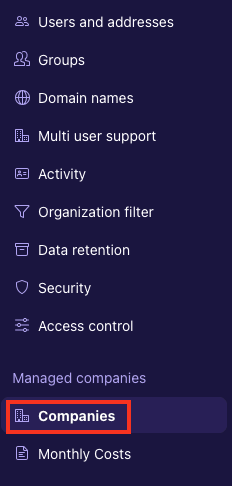
- On your Proton Pass admin dashboard, select the Companies tab under Managed companies
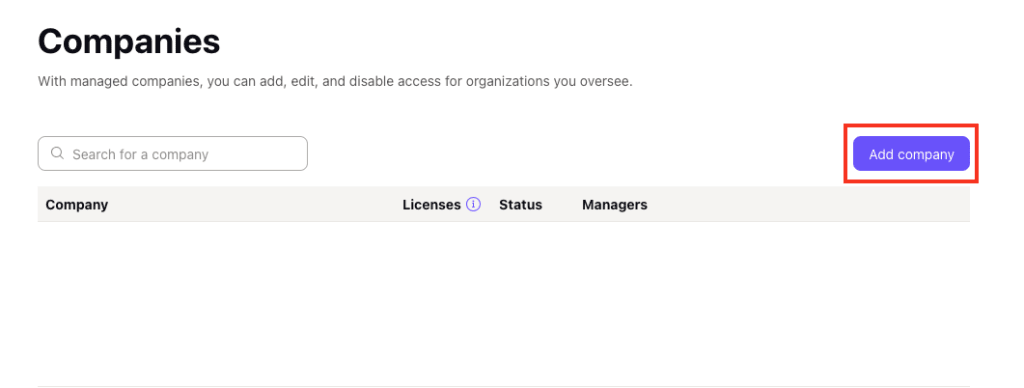
2. Select Companies → Add company
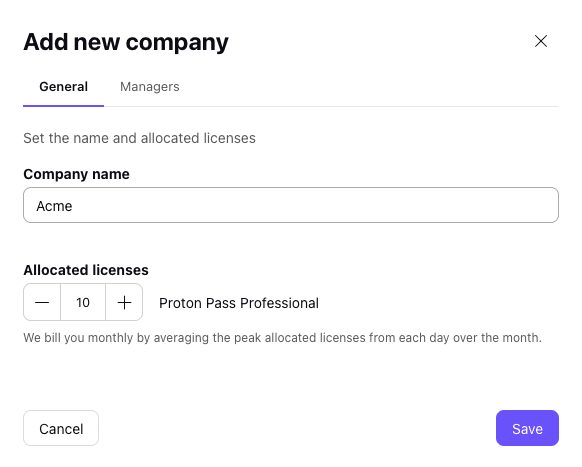
3. Enter the company name and amount of licenses
4. Select the Managers tab to add additional managers from your organization by name or email. When you’re done, select Save.
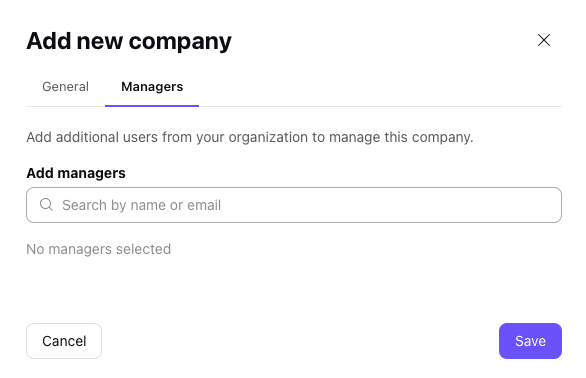
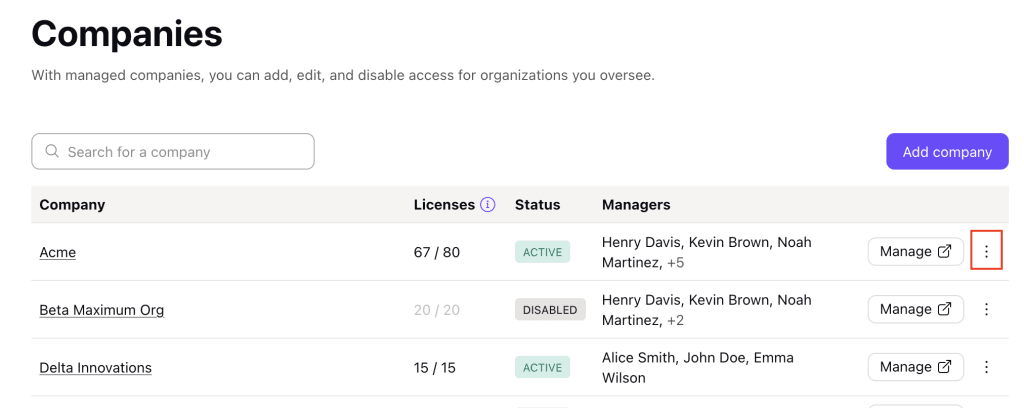
- When you’ve finished, you’ll be able to see the company on the Companies tab.
Edit companies
- If you need to make changes to a company you’re managing, select the ⋮ icon
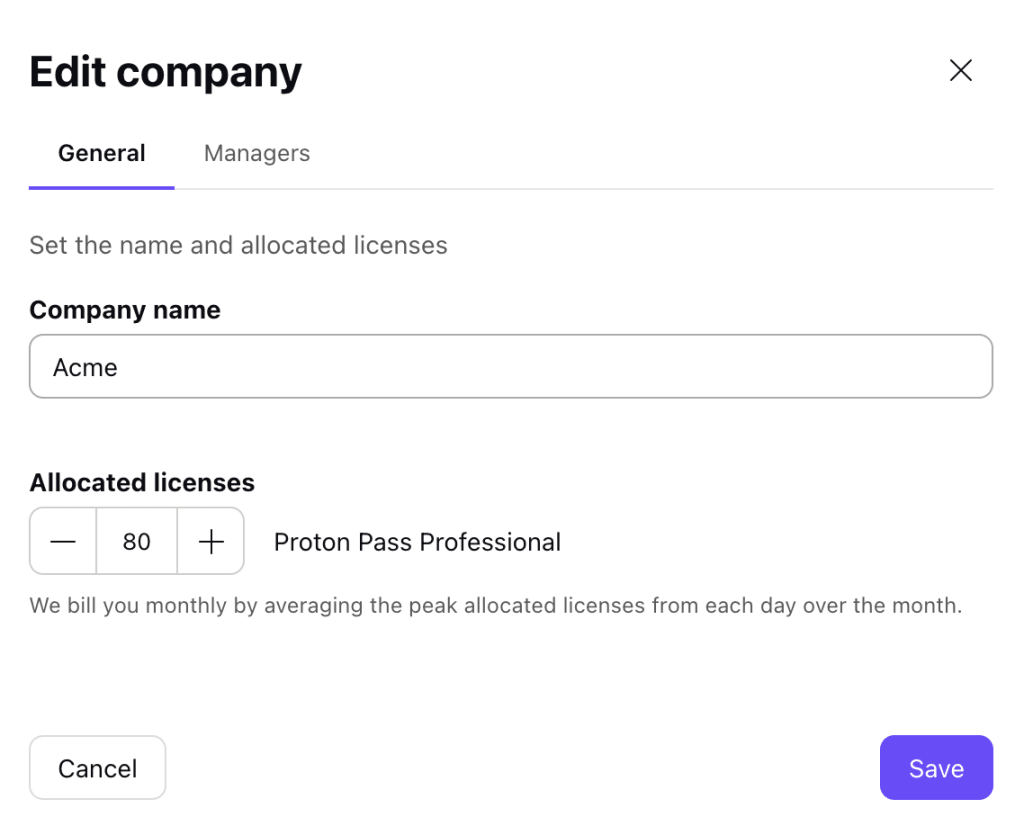
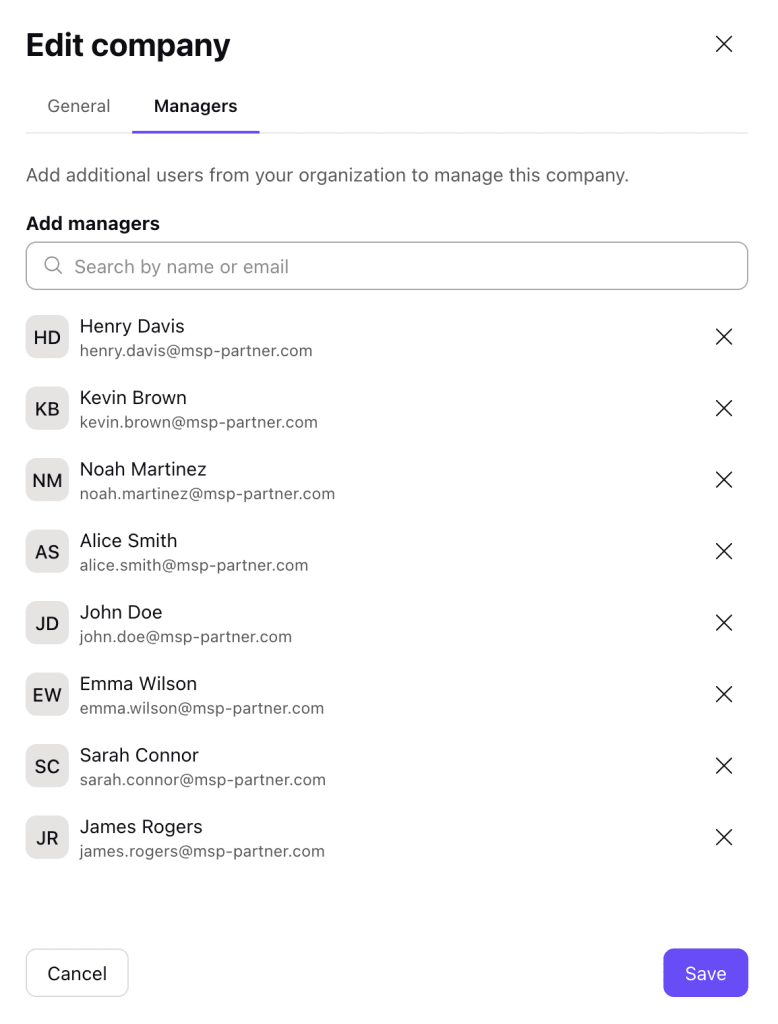
2. You can change the company name, allocated licenses, and managers. Select Save to make any changes.
Manage companies
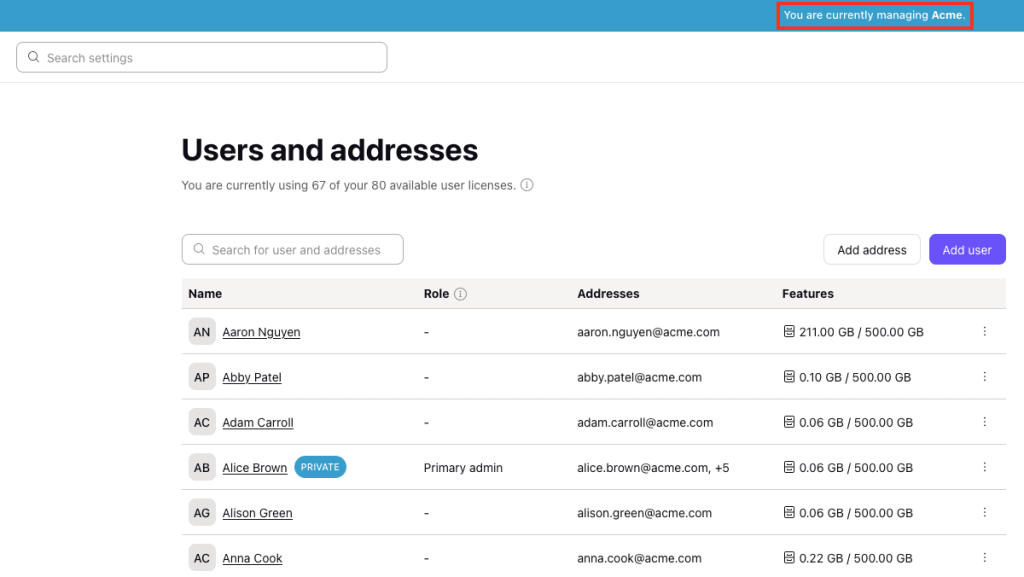
When you’re managing a company, you’re effectively an admin within that company: you can manage users and create policies the same way you can for your own company. You can’t access the company’s data, maintaining their privacy.
- Once you’ve added a company, select Manage.
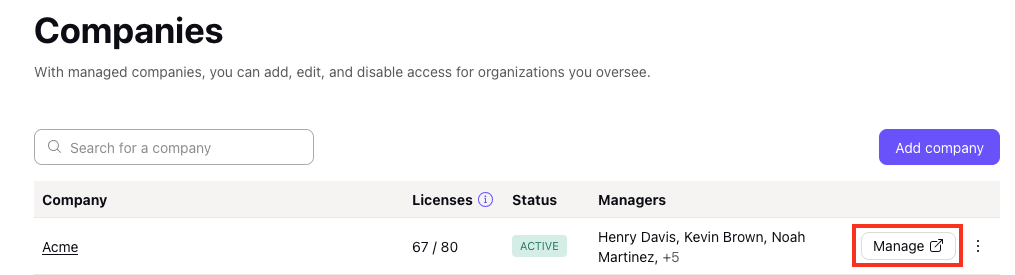
2. When you’re managing a company, you’ll see a blue bar across the top of the screen reminding you of the company name.
Roles and permissions
As a manager, you have the same permissions as an admins within the business, including:
You can find additional support on the Proton Pass for Business support page.
Disable and re-enable companies
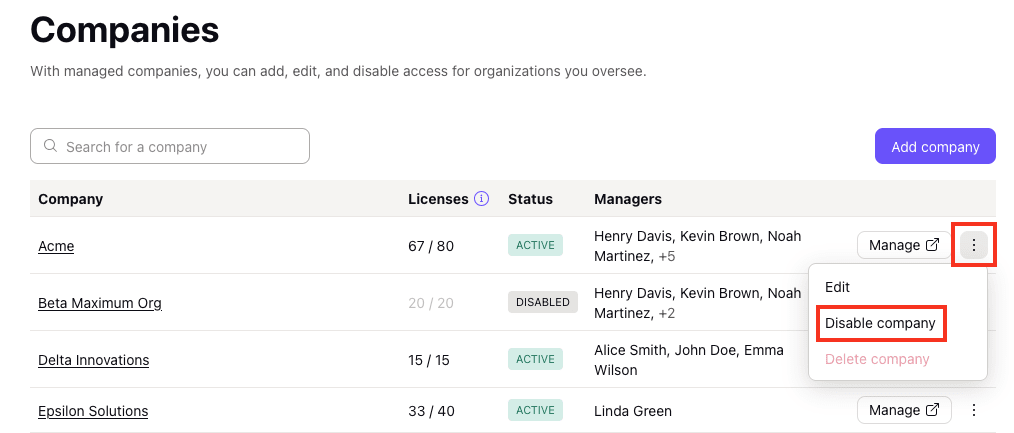
- To disable a company, select the ⋮ icon → Disable company
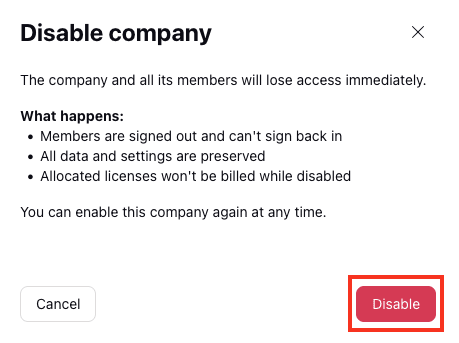
2. Confirm that you want to continue by selecting Disable
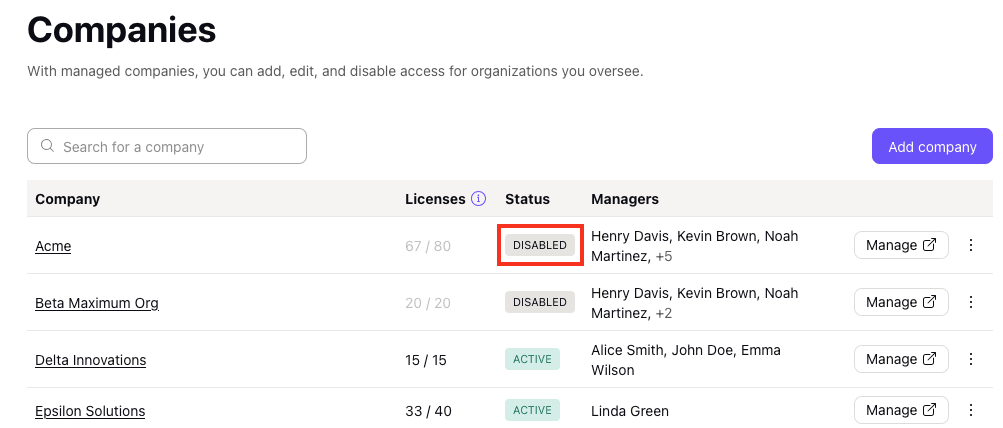
3. Any disabled companies will appear on the Companies tab with a Disabled status.